
In my testing, I utilized the prebuilt Receipt model. I also built a .NET application that processes receipts and saves the data to my SQL database. I will cover the application at the end, but first, I want to highlight how this service works and outline its core benefits.
Setup
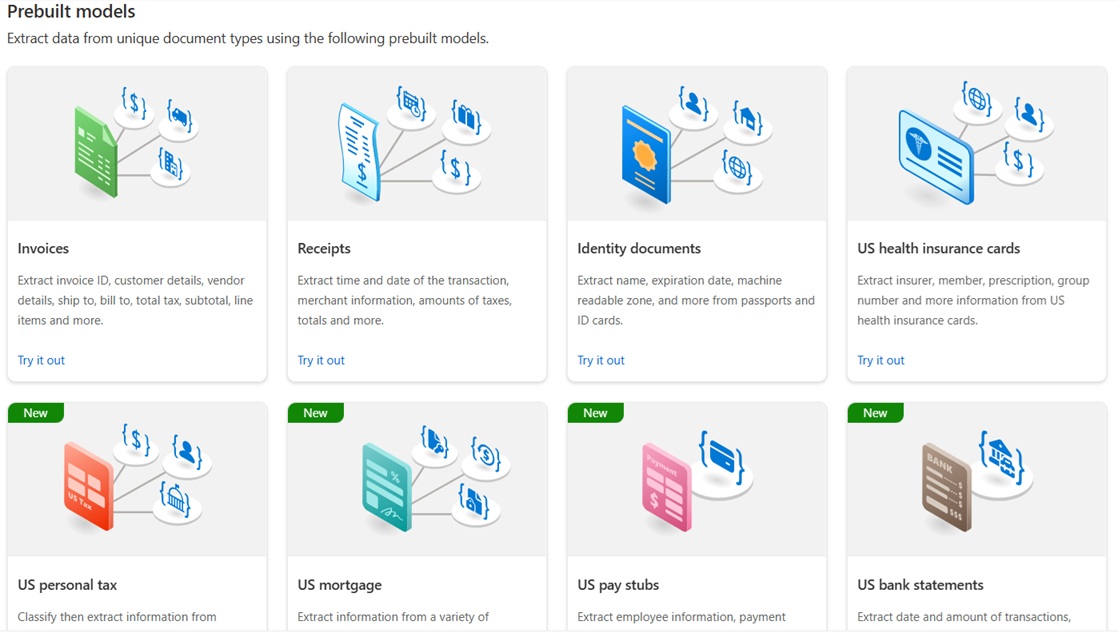
Setting up Document Intelligence is a straightforward process. First, you add the Document Intelligence service to your Azure account. Once added, you open the Document Intelligence Studio, where you can pick from a diverse menu of specialized models.
Here is what the menu looks like inside of Azure
Pre-Loaded Testing Environment
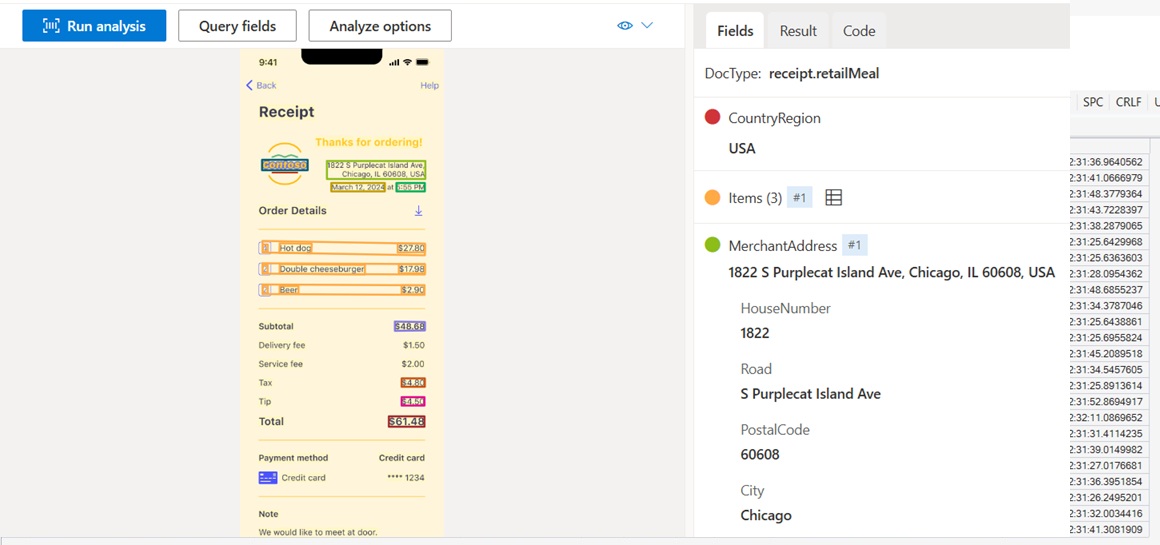
A nice thing about the Document Intelligence Studio is that it comes pre-loaded with sample files so you can really grasp how it works. The screenshot below really doesn't do it justice, but you can configure a number of different things such as the precise fields you want to capture and additional options you can set. It will also give you the complete code with your modifications in C# or Python. You also can upload your own documents, test with them, and then grab the code tailored for that specific model type.
Warning: Document Intelligence has Transaction Per Second (TPS) Limits
For an Azure S0 account, there is a transaction limit of 15 transactions (pages) per second.
Free (F0) tiers restrict processing to a low per-minute threshold.
It is important to understand these transaction limits. If you are processing a lot of files, then you cannot just keep sending them in large batches or you will hit the TPS limit. A bulk solution requires Azure Storage Queues or Azure Service Bus to regulate and balance the flow.
If you want a higher limit, then you can write to Microsoft and request a limit increase. There is no guarantee they will. Research indicates they will raise it to 60-100 transactions per second if they agree.
Pro Tip: Azure Durable Functions with a fan-out pattern may seem like a solid approach, but you will hit the limit if you're running batches over 15 files. Concurrent executions count against the string per-second threshold.
Cost: Charged Per Transaction (page)
I set up my Document Intelligence in Central US and used a pre-built Receipt model. The Azure Cost Calculator gave me an estimate of $10.00 per 1,000 pages for that model.
Note that this says "pages," not documents. You are charged per page (transaction).
Your cost may vary depending on the extraction model that you use. For example, OCR is less expensive than pre-built models, estimated to be $1.50 per 1,000 pages for my region and tier. Custom Extraction is far more expensive, coming in at $30.00 per 1,000 pages. Your cost will also vary depending on your region and tier.
A Working Solution, but with a left turn
I set up Document Intelligence as I have outlined above.
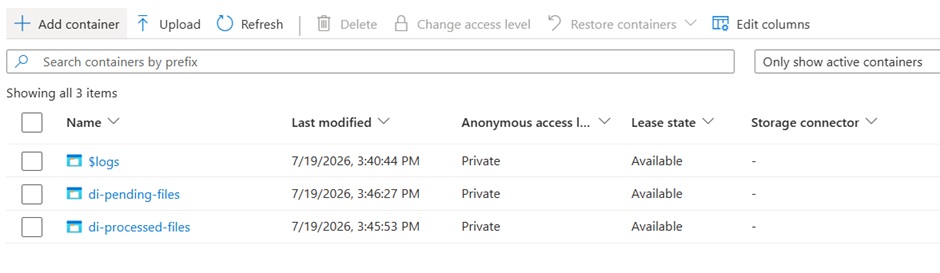
I then created a new Blob Storage Account. I created two containers within it:
- Pending
- Processed
After I was done configuring Azure, I built two .NET applications for my project:
- Web Uploader App: A simple .NET app that would allow me to upload multiple documents and save them to an Azure Blob Storage Container named "Pending".
- Azure Function App: A serverless application that uses Durable Functions to orchestrate receipt processing. A Blob trigger acts as a listener to kick off the process. The moment a new file arrives, the app sends it to Document Intelligence for extraction, purges it from the "Pending" container, and saves it into the "Processed" container.
The solution I ended up with will work just fine for one-by-one file processing or small batches (less than 15 pages). It is not the solution that you want if you are going to bulk process or have a system that is actively processing files all day. As I stated earlier, the best approach for bulk processing is Azure Storage Queues or Azure Service Bus.
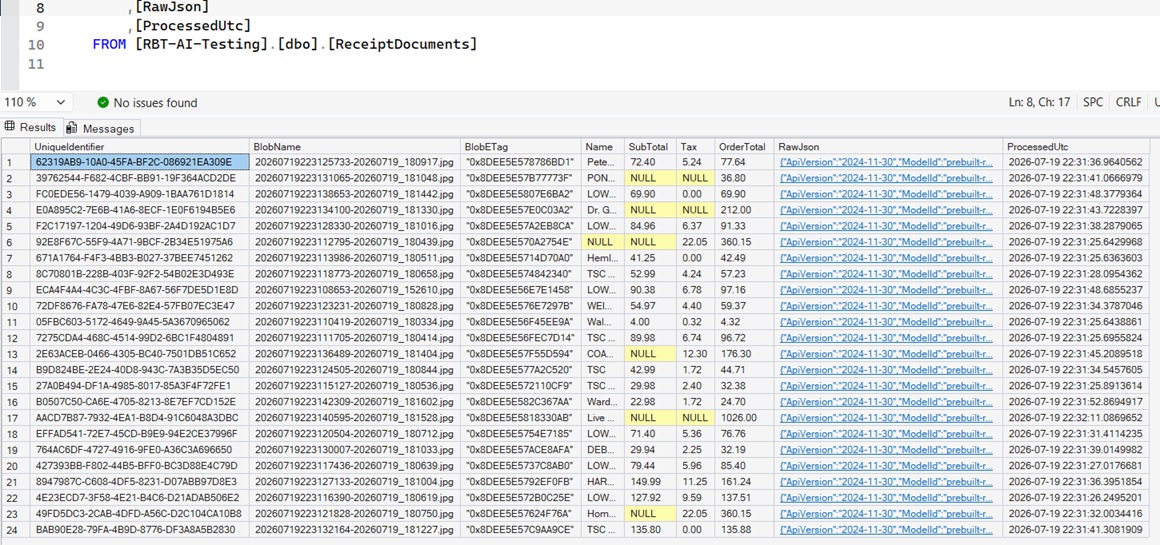
Regardless of my mistake, as my receipts processed, they were landing in my database. You can open the image below to see the data fields I captured. I also kept the JSON string on hand in case further processing is needed down the road, so I don't have to process the file again.
And if you are interested in what the Blob trigger (listener) looks like in the Function App, here it is. As soon as the receipt is added to the "Pending" container, processing immediately begins.
public sealed class BlobReceiptTrigger
{
    [Function(nameof(BlobReceiptTrigger))]
    public async Task RunAsync(
        [BlobTrigger("%PendingContainer%/{name}", Connection = "BlobConnectionString")] byte[] blobContent,
        string name,
        [DurableClient] DurableTaskClient durableClient,
        FunctionContext context)
    {
        var logger = context.GetLogger<BlobReceiptTrigger>();
        var request = new ReceiptProcessRequest { BlobName = name };

        var instanceId = await durableClient.ScheduleNewOrchestrationInstanceAsync(
            nameof(ReceiptOrchestration.RunOrchestratorAsync),
            request);

        logger.LogInformation("Started orchestration {InstanceId} for blob {BlobName} ({Size} bytes)", instanceId, name, blobContent.Length);
    }
}
Thoroughly Impressed
Azure Document Intelligence is an impressive service. The Document Intelligence Studio provided an excellent visual workspace to quickly understand how the service operates and what it can achieve. Setting it up was seamless - I simply attached the resource to my Azure subscription, selected my model, and configured Azure Blob Storage containers for my data. From there, I built a custom application that handles file uploads, invokes the processing API, and writes the structured outputs to a database.
Lessons Learned
Always verify service limits before you begin architecting a solution with Azure - including LLMs on the Microsoft Foundry platform. Keep in mind that even if a service does not charge by tokens, it may still enforce strict rate limits or transaction caps. Additionally, do not overestimate the capabilities of serverless architectures. Running tasks in parallel sounds ideal, but those instances must still adhere to concurrent backend thresholds. Finally, always account for your infrastructure's hard ceilings: standard Azure Function hosting plans restrict parallel scale to a limit of 100 to 200 instances.