To be honest, I would have preferred to connect Azure AI Search to a solid SQL database full of deep information, but then I thought to myself, would that even be the best approach in the real world? Plus, I don't have one, and hooking up the Adventure Works sample database just didn't seem all that exciting to me. I then thought to myself, what if someone had a large collection of letters sent home during World War II and wanted to create a searchable index of those documents with synthetic summaries based on the entire volume? An application like that would be pretty darn cool, especially to a history buff like me.
Nonetheless, here we are, leaving the database behind and diving into another data source - files!
For this example, I am using Azure AI Search and Microsoft's Phi-4 LLM (serverless) to create a pipeline that reads a document source stored in Azure Blob Storage. This article assumes you have already provisioned an LLM in Microsoft Foundry - serverless or provisioned throughput. It is not difficult to do, but for the sake of staying directly on topic, I am not going to cover that here.
Getting Started: Files and Blob Storage
I wish I had all those letters from WWII that I was talking about, but I don't. The best I could do was a Microsoft Word document of all the blogs I have posted here at AO. I used one document that ended up being 44 pages long. You do not need to use one file. You can use multiple files. One file is the absolute best, but that will not be practical for most people.
Do some research on the file types you want to use. Not all of them are good candidates for this type of searching. I anticipated putting everything into a PDF file, but research suggested that Word documents were better because they are actual files with actual text, whereas a PDF is often just a rendered copy of another document, and its underlying text isn't always as clean or extractable.
Additionally, images are of no benefit in these files (they cannot be read). If you use one file for your RAG data source, you want to make sure you do not have long sections of carriage returns between text.
Once I had completed my file, I created an Azure Blob Storage account to store it. That's it — time to set up Azure AI Search.
Configuring Azure AI Search
Going through the process of creating a search index for Azure AI Search is straightforward. There are plenty of resources to guide you through this process. You create an index and attach it to your file (or files) in Azure Blob Storage. It then takes the document and chunks it. It then converts the chunks into vectors. It is these chunks that get searched upon.
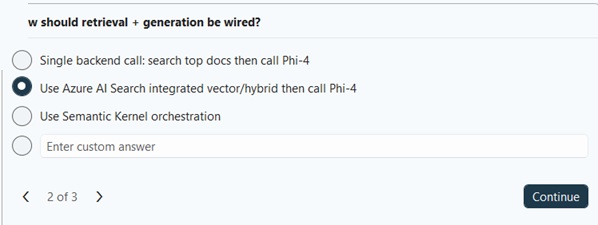
There is one important setting to be aware of that I want to mention. Take a look at the image below. You will see three options. For a RAG search on a document base, you want the second option. The first option would apply to regular old searching, the way you've always known it. The last option would be for complex, multi-step processes where the RAG request is only part of a larger picture.
We are doing vector searches, but this is not a multi-tool process. Thus, we want option #2.
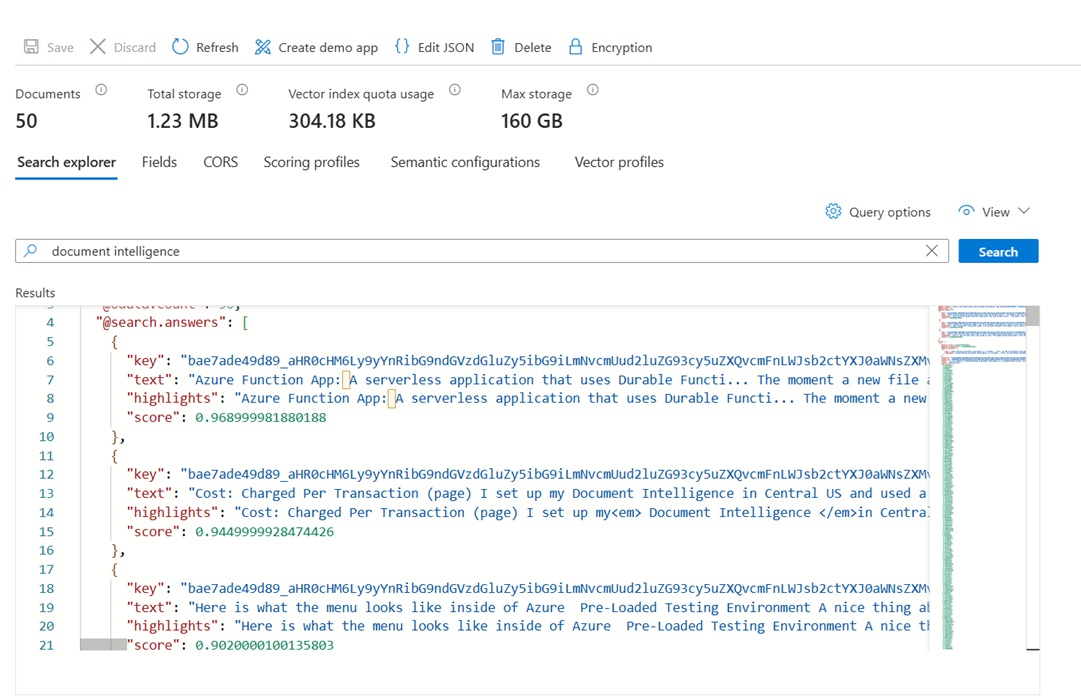
After your Azure AI Search is set up, you can query the document base in Azure if you want to see the JSON structure and what the raw responses look like. By the way, there are statistics at the top. I'm not sure whether that means 50 chunks, or whether my vector chunks represent 50 individual documents.
Readability, Cost, and Efficiency Settings
Inside the appSettings file are several settings that can make your RAG request more natural, faster, and more cost-effective to use.
- Temperature: The lower the number, the more direct and punchier the response. The higher the temperature, the freer-flowing the response becomes. 0.7 is an industry standard for a nice balance between accuracy and fluency.
- MaxTokens: You can set a threshold of tokens. Once the request hits the MaxTokens size, it will stop, synthesize the text to that point, and spit out an answer.
- MaxContextCharacters: This is where you can limit the amount of text that the LLM will process. It will only use the vector chunks with the highest similarity score.
The appSettings File
  "Foundry": {
    "Endpoint": "",
    "ApiKey": "",
    "Model": "",
    "DeploymentName": "",
    "ApiVersion": "2024-05-01-preview",
    "Temperature": 0.7,
    "MaxTokens": 700
  },
  "Rag": {
    "SystemPrompt": "You are a helpful assistant that synthesizes information from source documents into clear, natural-flowing summaries. Your responses should be cohesive narratives, not just concatenated snippets. Write in a friendly, conversational tone. Only use information from the provided sources, and cite them with [1], [2], etc. If the sources don't contain enough information to answer fully, say so.",
    "MaxContextCharacters": 6000
  }
Additional Prompt Instructions for Textual Synthesis (RagPipelineService.cs)
builder.AppendLine("The following source excerpts contain relevant information. Synthesize these into a cohesive, natural-flowing answer:");
builder.AppendLine("Instructions:");
builder.AppendLine("- Write your answer as ONE paragraph only, 300 words or less");
builder.AppendLine("- Synthesize the information above into a clear, coherent narrative");
builder.AppendLine("- Write in natural, flowing language (not choppy snippets)");
builder.AppendLine("- Include source citations [1], [2], etc. naturally within your response");
builder.AppendLine("- Be conversational and friendly");
builder.AppendLine("- Only use information from the sources above");
builder.AppendLine("- If key information is missing, acknowledge it");
The Prompt Response
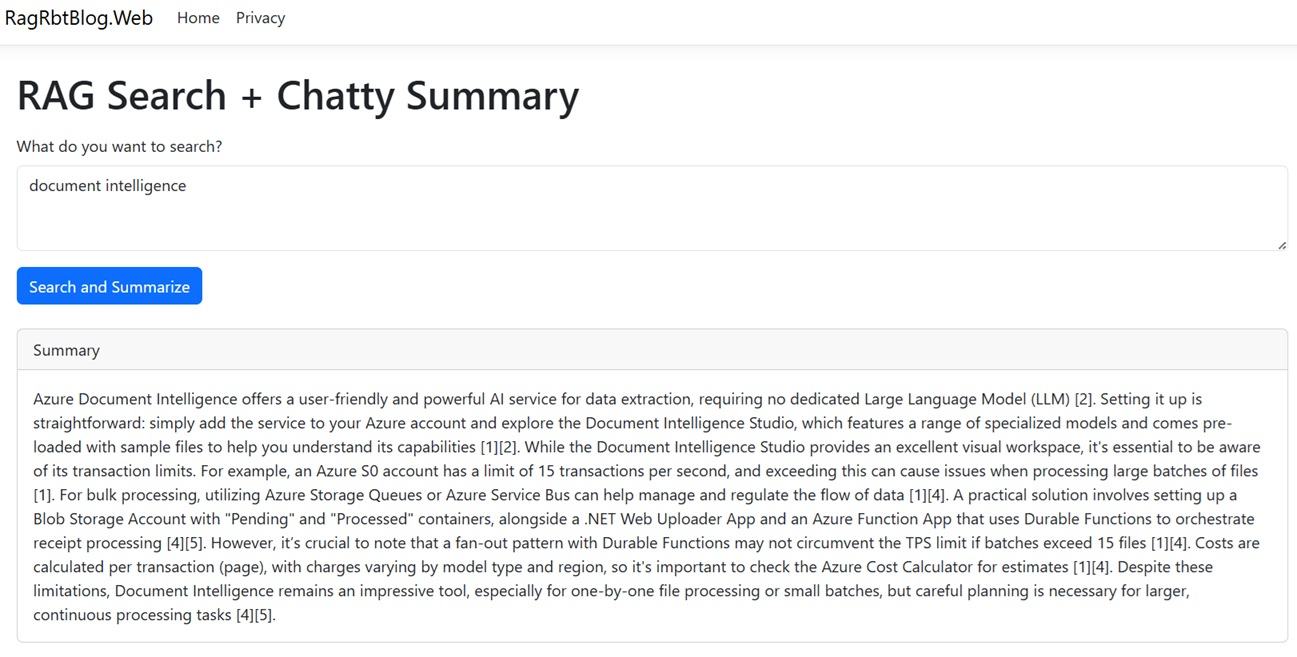
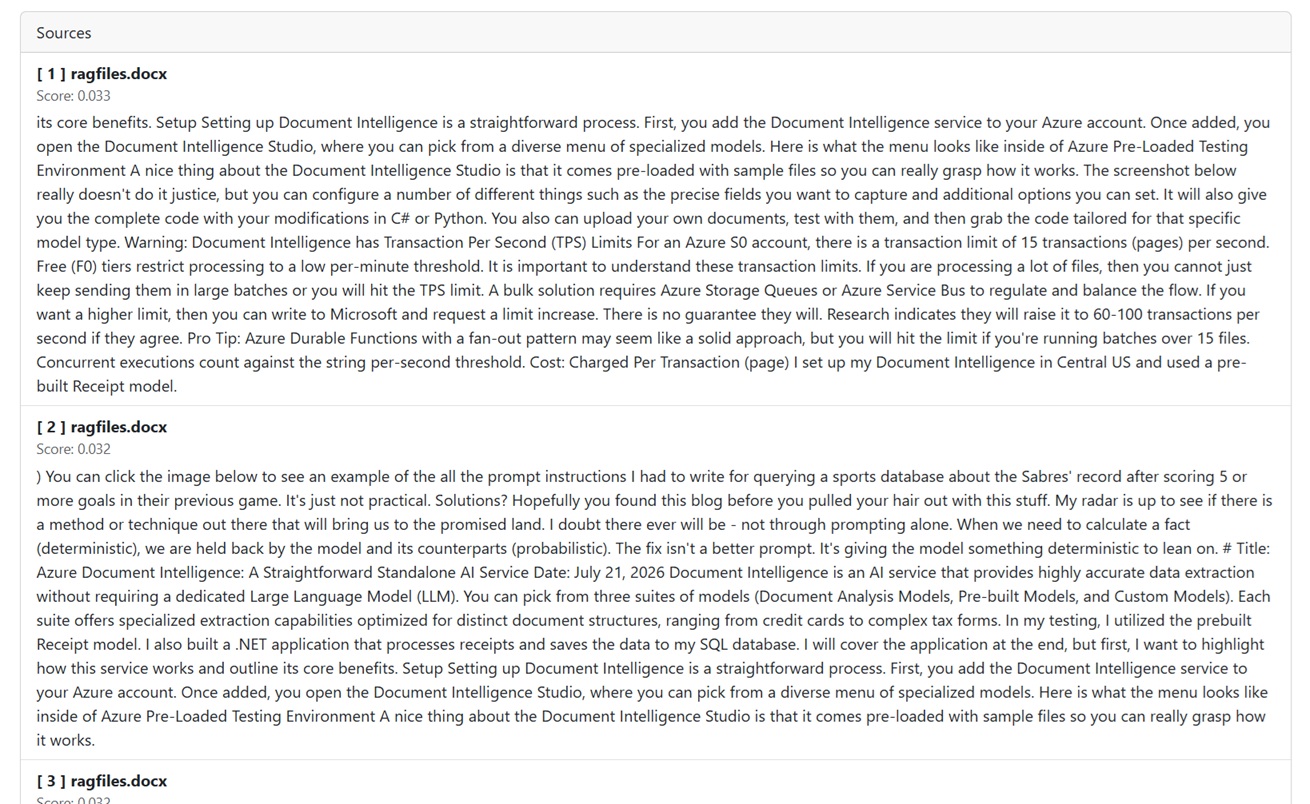
There are videos at the very end of this blog post that will show you the actual prompt experience. By default, you will get back more than just the actual response. You will also get the plain text chunks that the answer was derived from.
Below are two screenshots. The top screenshot is the desired textual summary. The screenshot below it shows the de-vectorized chunks that appear on my screen below the answer. Note how the summary references the chunks [1], [2], [3], etc.
Serverless Cold Starts On Your LLM
Azure serverless LLMs are pay-as-you-go. This also means that the service goes cold if it is not in use for 5-15 minutes. That means your next request causes a cold start - it needs to fire up. This can cause a delay when you make your first request after a period of idleness, and possibly even cause the request to time out.
If cold starts become an issue, you have an option to keep it warm:
Set up an Azure Function to ping the LLM every 5 minutes. This incurs $0 cost on the model, but you will need to pay for the API requests to keep it warm. From my research, it shouldn't be any more than $5–$10 per month.
It is either that or put the model on provisioned throughput (a dedicated GPU), which is going to cost a few hundred dollars per month. Not necessarily ideal.
My gut feeling is that the cold starts are something most can deal with, but the Azure Function ping every 5 minutes is a very low-cost strategy if you need to keep it warm.
Amount of Time to Set Up and Test
Minimal. Less than an hour, and that includes creating the Word document that became the source document. Many of the AI features that I have been using in Azure are very fast to set up. Copilot also makes it fast when you are creating new test applications. This was only for demonstration purposes. It's not being deployed to production. So, I don't have the overhead of pushing branches or additional security strategies like Azure Key Vault.
The truth is that it takes a lot longer to write these blogs than it does to set up agentic AI tools for testing purposes.
Cost
We have two price points here: Azure AI Search and the LLM. Both incur their own costs.
- Azure AI Search: On a basic plan, this would cost me an estimated $75 per month for a volume of this size. If you wanted a faster S0 tier, then it would run an estimated $274 per month.
- Serverless Phi-4 Model: A straightforward $0.003 per RAG request.
Video!
They're not the over-dramatic, hyperactive type of video you will find on YouTube, but they demonstrate what is happening in a C# application calling the Azure AI Search and Phi-4 endpoints in succession.
The following video will show some of the LLM settings and prompt instructions in a C# application in Visual Studio. RagPipelineService.cs appears after the appSettings file. It's in the RagPipelineService.cs where we call Azure AI Search to get its matching payload and then add those contents to an LLM prompt with instructions.
If you want to see what the actual API returns from the model, watch below. Remember, each search queries Azure AI Search for matching vector chunks. We then take the results from Azure AI Search and send them to the LLM for a nice textual summary.