While there is plenty you can achieve with SQL MCP, many users might find its current capabilities somewhat limited. I will dive deeper into those limitations in a future post. For now, let’s just say that if you are implementing this expecting a powerful way to gain broad visibility into your data, you might be disappointed.
I posted this to help anyone who may get stuck trying to get the container to read a custom dab-config.json file. If you are hitting errors when running AI queries, the container is likely reading its own default internal configuration rather than yours.
The Back Story
The SQL MCP container ships with a default, internal dab-config.json file. However, you need to explicitly instruct the container to ignore its internal file and read your custom configuration. The dab-config.json JSON file defines your database parameters, including your connection string, tables, views, stored procedures, and column definitions.
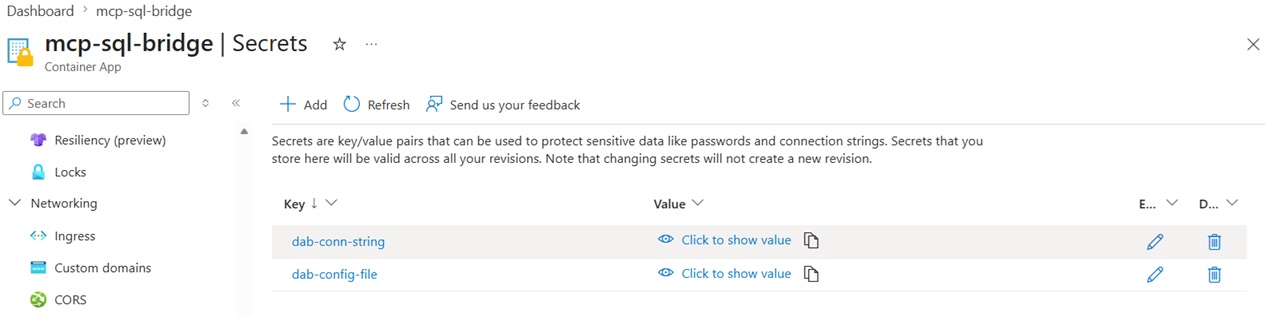
When I setup the MCP container in Azure, I used the simplest approach. I created a new Secret for it and added the file contents to the secret (copy & paste). My secret screen looks like this with a secret for the database connection (based on Azure Key Vault) and my dab-config-file, which is what we are talking about in this blog.
The Problem: Silent Configuration Overrides
After configuring my environment variables and secrets inside my Azure Container App, the application stubbornly refused to read my custom file.
By launching the Container Console, I verified exactly which configuration file the runtime environment was targeting. This confirmed it was stuck on the image's default file. You can run these diagnostic commands in your console to verify your setup:
- cat /App/dab-config.json - Check if it still outputs the default image configuration.
- cat /mnt/secrets/dab-config-file - Verify if your actual mounted secret configuration is visible here.
- cat /proc/1/environ | tr '\0' '\n' | grep -i -E 'DAB|CONFIG|CONN' - Confirm your environment variables are correctly injected.

Mounting the Volume: The Way Around
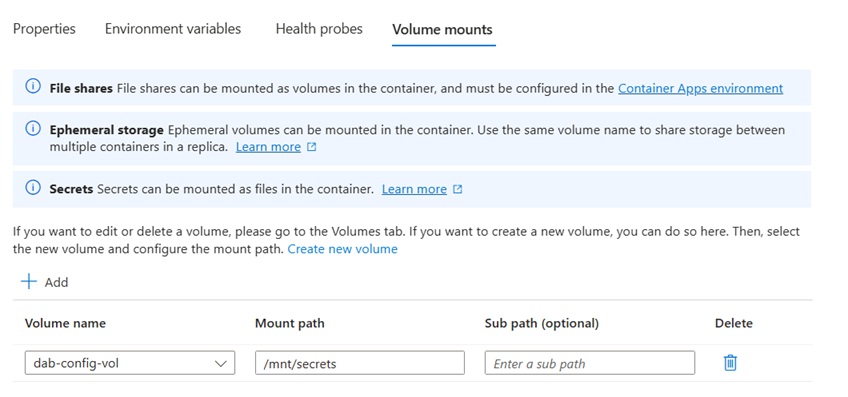
After troubleshooting with various workarounds, I consulted Copilot and Gemini. The solution required explicitly mounting a volume within Azure Container Apps. This process maps your secret directly to a file path inside the container environment.
When configuring a new volume mount, select your secret name from the dropdown menu. In this setup, /mnt/secrets/dab-config-file becomes the actual mounted file view of the secret named dab-config-file.
Updating the YAML Configuration
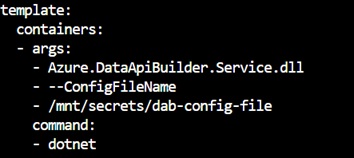
To force Data API builder to use the mounted file, you must pass the --ConfigFileName argument to the container startup command. We need to append these specific nodes to the container's YAML definition:
- command: [dotnet]
- args: [Azure.DataApiBuilder.Service.dll, --ConfigFileName, /mnt/secrets/dab-config-file]
First, download your current deployment YAML using Azure Cloud Shell:
bash
az containerapp show --name
Next, modify the empty command and args arrays. While you can edit the file inline using text editors like nano or vi, you can safely automate the replacement in Cloud Shell using sed:
bash
- sed -i 's/command: \[\]/command: [dotnet]/' app.yaml
- sed -i 's/args: \[\]/args: [Azure.DataApiBuilder.Service.dll, --ConfigFileName, \/mnt\/secrets\/dab-config-file]/' app.yaml
Apply the updated configuration back to your Azure Container App:
bash
az containerapp show --name
Once updated, you can inspect the file or view the Container Apps portal to confirm the nodes appear correctly near the bottom of your container properties block.
The Result
After redeploying with the modified YAML, the container successfully loaded the custom dab-config.json file from the secret mount. Prompting the model no longer returns configuration-related errors.
A Couple More Crucial Notes
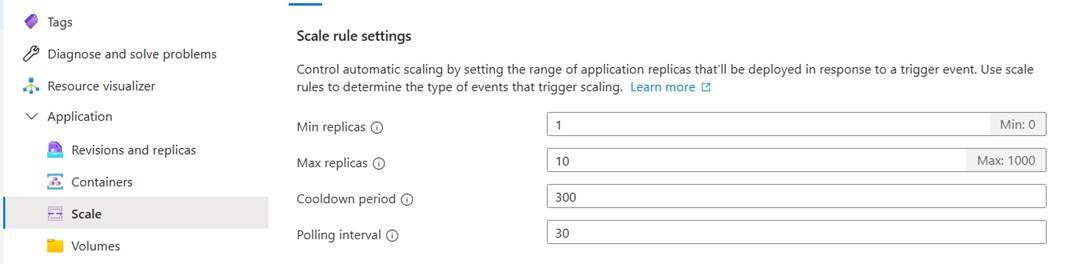
• Scale: Watch your scale settings. By default, Azure Container Apps set the Minimum Replicas to 0. If an AI model attempts to call the MCP server while it is scaled down to zero, your initial prompts will suffer severe latency or timeout errors while waiting for a cold start.
• Enable MCP: Don't forget that inside your custom dab-config.json file, you must explicitly enable the Model Context Protocol endpoint block. It is turned off by default:
JSON
"mcp": {
"enabled": true
},